My regex blew up the Issue Tracker page, how do I reset it?

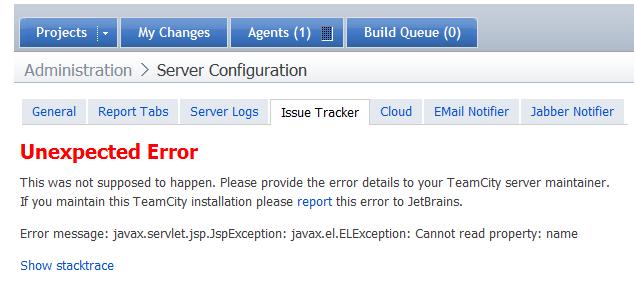
I was trying various regular expressions for the Issue Tracker ID finder (Bugzilla) and now the page won't come up anymore. I tried removing it, but that didn't help. I tried removing the information from the issue-tracker.xml file, in the .BuildServer\config folder and that didn't even reset it.
What do I do to reset this page back to having nothing configured?
Attachment(s):
IssueTracker.jpg
Please sign in to leave a comment.
Please submit a bug report to our tracker with exception shown on the page.
Basically, in order to get the Issue Tracker screen working again, I had to do this:
1. Install TeamCity on another machine.
2. Configure a new Issue Tracker rule, matching the information from the one that blew up.
3. Use a very simple Issue Id Pattern, just so you can save it.
4. Copy the contents of the issue-tracker.xml file from the fresh install.
5. Paste the contents into the broken TeamCity machine's issue-tracker.xml.
At this point, the issue tracker screen started working again on the production box, but the Rule I set up and copied over did not work. So, I had a few more steps:
6. Delete the rule I copied over.
7. Recreate the rule and save it.
Then it worked.
All of this basically stemmed from some combination of Issue ID Pattern that broke the Issue Tracker screen / as well as the 'Issues' drop down option from the main Project Build page. I don't know the exact regular expression I was working on, but it was something like this: (?<=Issue\s#:\s)\d{4}(?!.*(?>Issue\s#:\s))
Still it would be great if you submit a bug report. There could be a related exception in the teamcity-server.log. You can also attach the whole log from the broken server.
I created a bug for this - issue TW-10186
Server logs are attached to the bug.